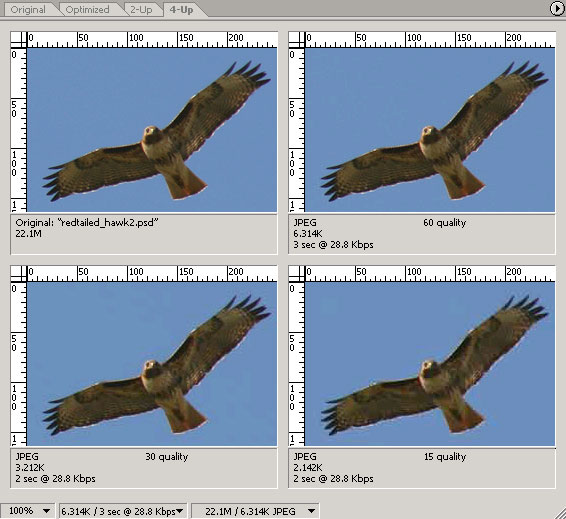
This example shows the results of varying levels of compression in a JPG image. The lower the "quality" number under the picture, the lower the file size. This image, which is 250x165px, shows how higher compression produces artifacts around the edges of the hawk's wings in the lower right photo. The sky surrounding the wings looks strangely wiggly. Overall, the hawk looks less crisp.
Some photos, depending on the whether the subject contains sharp, contrasting edges or not, can be compressed quite a bit more than others. When you want viewers to get a good impression of your company's CEO, be sure his portrait remains suitably sharp! But a forest scene used as decoration for the corner of the web page header may be able to be compressed quite a lot without really noticing it.
The original Photoshop image is in the upper left corner.
NOTE: I'm sure there is a scientific explanation for it, but I find that in Photoshop there is magic associated with a quality level of 51. Colors in many images visibly brighten between 50 and 51, and artifacts are largely reduced at that level as well.